Free Text to Image Generator Online – Create Custom Text Graphics
Want to turn a quote, announcement, or short message into a shareable image? You don't need complicated design software to create a graphic with customized text, colors, and typography.
The free Text to Image Generator from Muse AI SEO Tools lets you transform written text into a personalized image. Choose your font, adjust the text size, customize colors, and arrange your words using a visual editor.
Create graphics for social media, presentations, websites, and personal projects, then download them as PNG, JPEG, or WebP images.
What is a text to image generator?
A text to image generator converts written content into an image that can be shared or inserted into digital projects. Unlike AI illustration generators, which create pictures from descriptive prompts, this tool focuses on displaying your actual words as styled graphics.
You can enter a quote, heading, reminder, or announcement and customize how it appears in the final image. Our online text to image generator includes font selection, bold and italic formatting, text alignment, custom colors, and an interactive image preview.
The tool supports up to 200 words, making it suitable for short visual messages rather than lengthy documents.
Key features of our tool
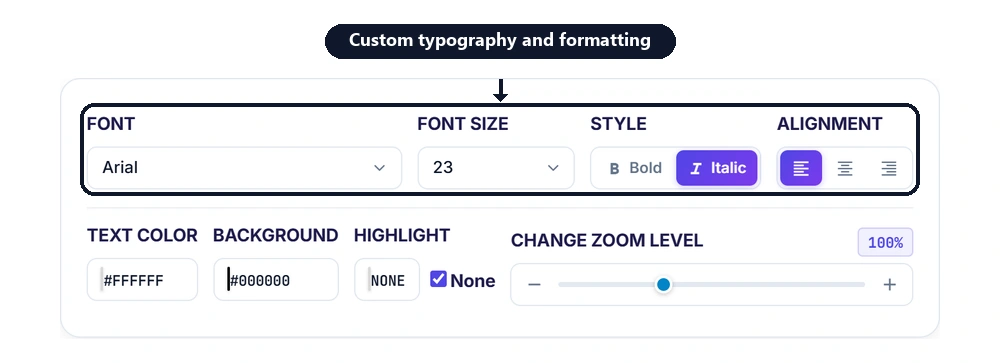
- Custom typography and formatting: Choose from 13 fonts, adjust font size, apply bold or italic styling, and select left, center, or right alignment.
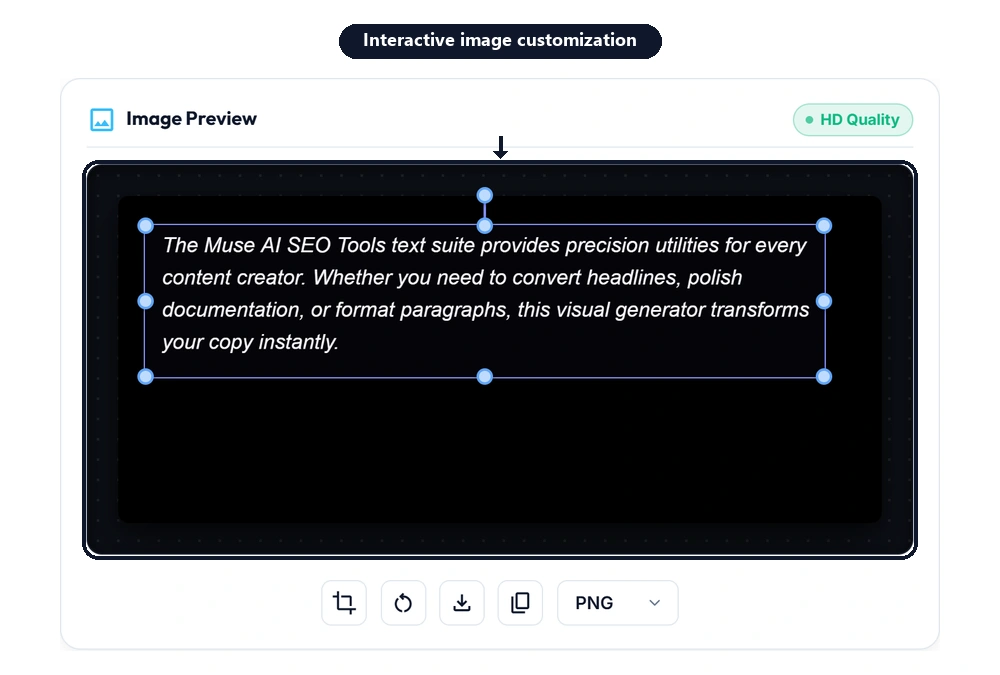
- Interactive image customization: Change text, background, and highlight colors, adjust the zoom level, and position or resize text within the preview.
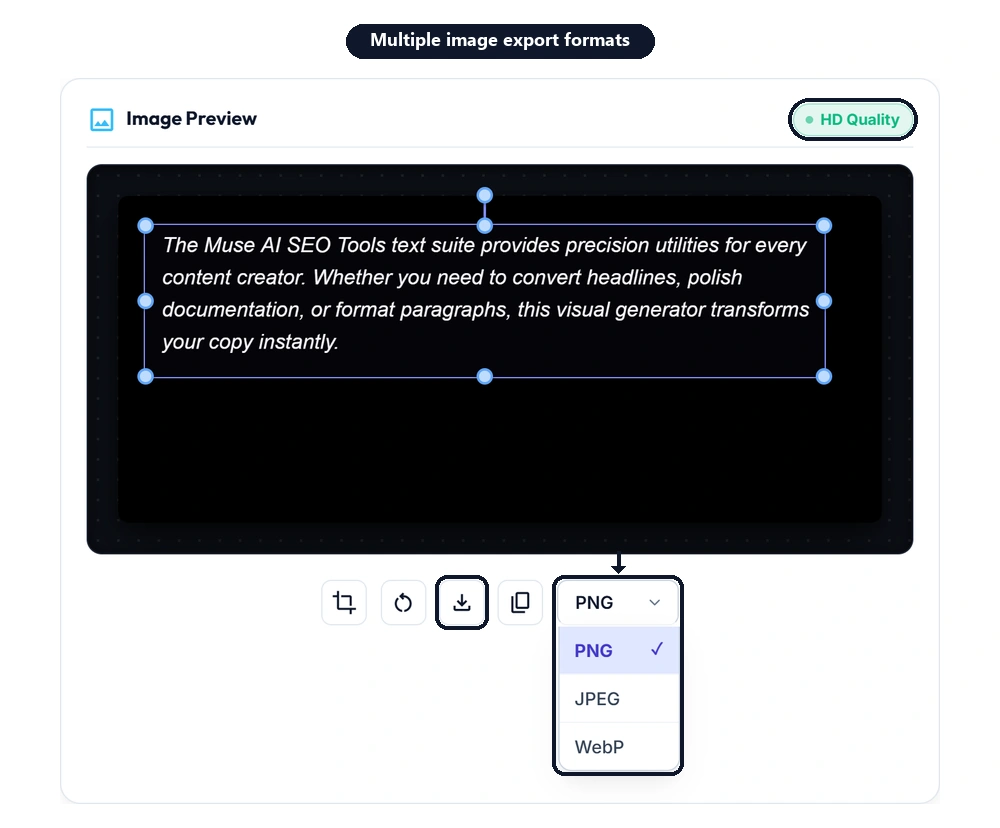
- Multiple image export formats: Download your finished text graphic as PNG, JPEG, or WebP, with an HD-quality preview.
How to convert text into an image
Using our free online text to image generator takes a few simple steps:
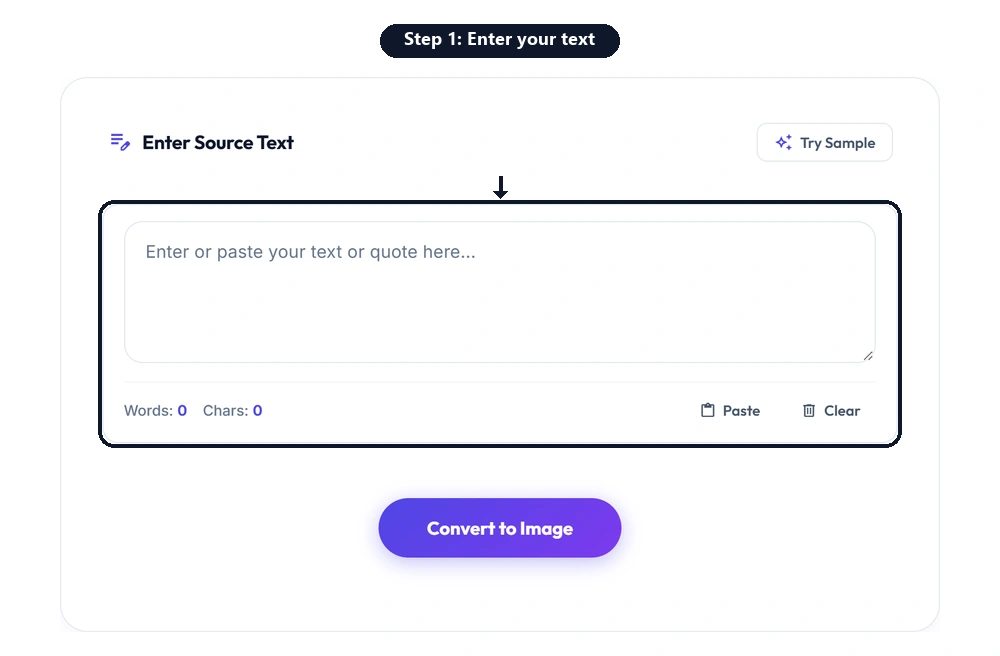
- Enter your text: Type or paste a quote, heading, or short message into the Enter Source Text box.
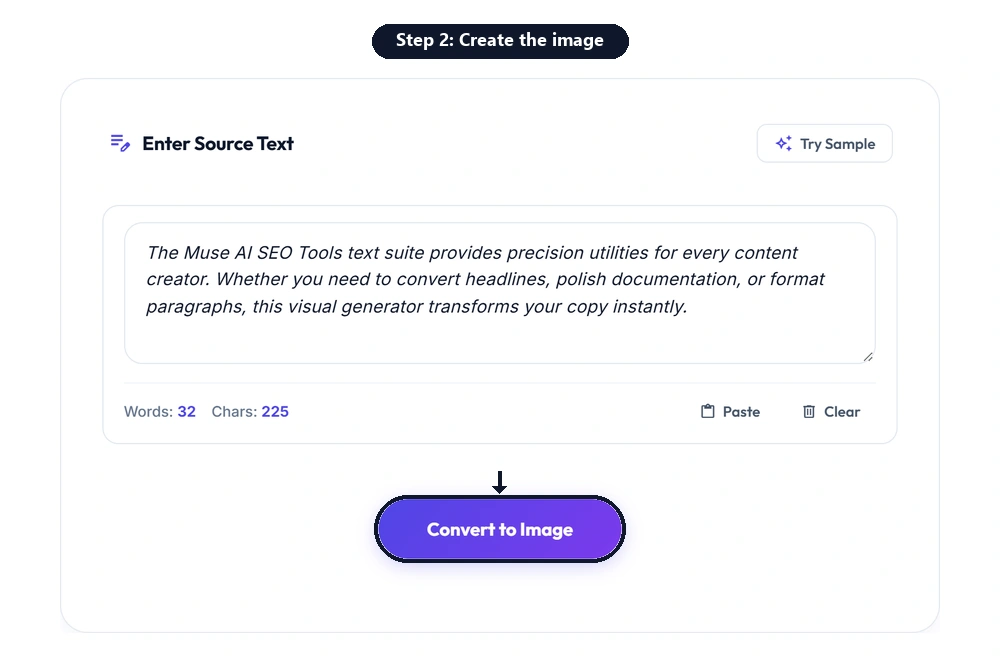
- Create the image: Click Convert to Image to open the formatting controls and image preview.
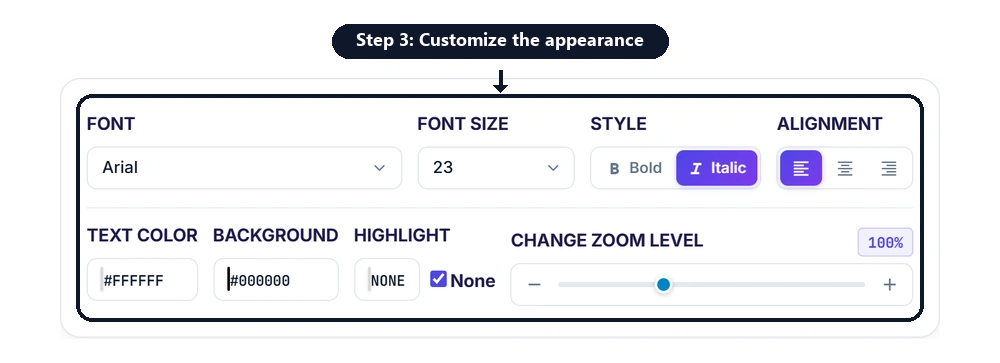
- Customize the appearance: Select a font and size, apply bold or italic styling, choose text alignment, and adjust text, background, or highlight colors.
- Arrange your text: Use the interactive preview to position and resize the text. Adjust the zoom level if needed.
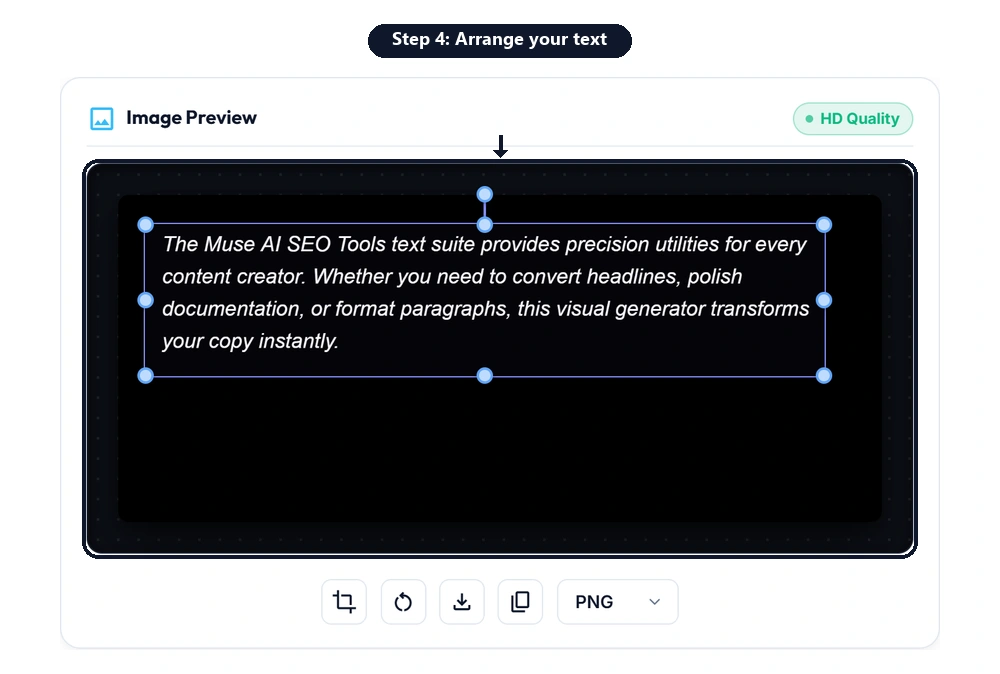
- Download your graphic: Choose PNG, JPEG, or WebP from the format dropdown and use the download control to save your image.
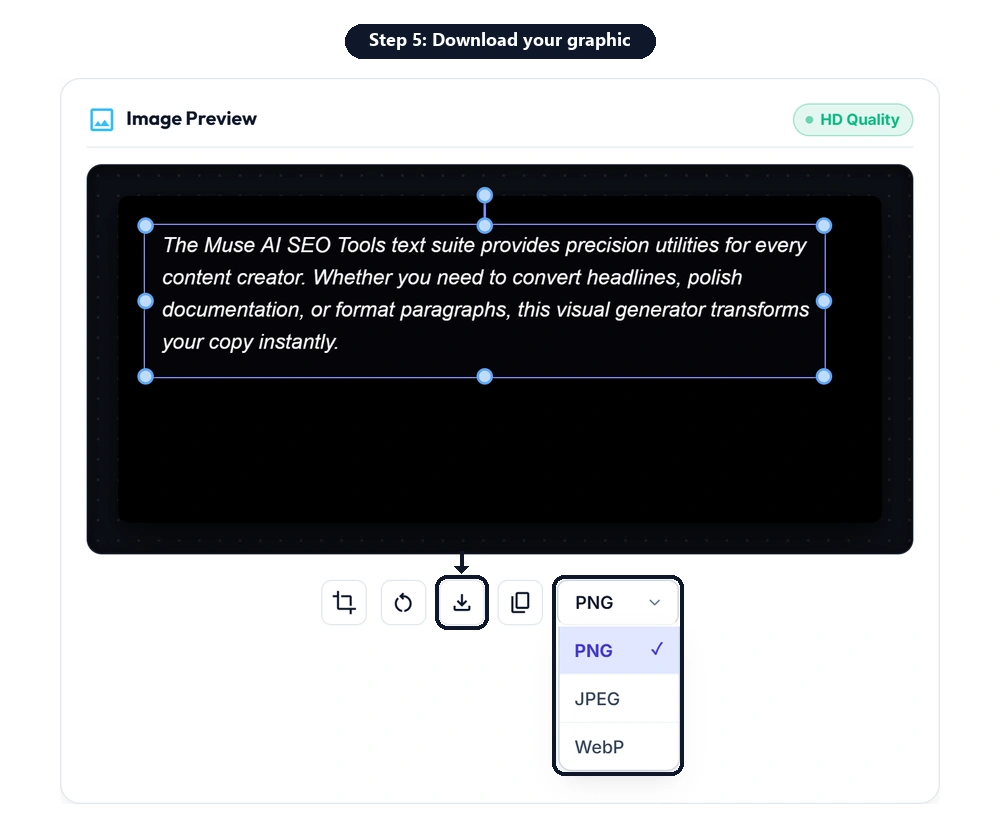
The editor also displays the total word count and remaining word allowance, helping you stay within the supported limit.
Popular practical use cases
Free text to image generators are useful for creating simple graphics without working through a full design application.
- Social media quotes: Turn motivational messages, testimonials, and short reviews into graphics for Instagram, Pinterest, and other platforms.
- Presentation headers: Create styled headings, section titles, and visual dividers for slides or school assignments.
- Website banners: Prepare simple announcements, promotional messages, and text-based graphics for blogs or business websites.
- Quick digital notes: Turn reminders, study formulas, and important information into image cards for convenient viewing on your phone.
Customize your text graphic
The editor provides several controls for changing how your image looks.
| Customization | Available options | Purpose |
|---|---|---|
| Font | Arial, Roboto, Poppins, Montserrat, Georgia, and other available fonts | Change the appearance of your text |
| Font size | Multiple preset sizes | Make text larger or smaller |
| Text style | Bold and italic | Add emphasis |
| Alignment | Left, center, right | Control text arrangement |
| Colors | Custom text, background, and highlight colors | Create contrast or match a design |
| Image preview | Text positioning, resizing, and zoom | Refine the layout before export |
For example, you could create a presentation heading using bold Montserrat text on a dark background or design a quote card with italic Georgia lettering.
The interactive preview lets you see these changes before downloading the finished image.
Which image format should you download?
The best format depends on where you intend to use your graphic.
| Format | Best for |
|---|---|
| PNG | Text graphics where sharp edges and clear lettering are important |
| JPEG | General-purpose images for documents and sharing |
| WebP | Web graphics where efficient image compression is useful |
The final file size and appearance can vary depending on the design and selected format.
If you need to extract writing from an existing picture, try our Image to Text Converter.
For translating text found in images, use the Image Translator. You can also explore Speech to Text when you want to turn spoken words into editable writing before designing a graphic.
Create text images for free
Whether you're preparing a social media quote, presentation heading, or digital reminder, the text to image generator free tool from Muse AI SEO Tools makes it easy to create personalized text graphics.
Enter your words, customize their appearance, and download an image ready for your project.