Optical Character Recognition – Extract Text from Images Online
Need to copy text from a scanned document, printed page, or screenshot without typing everything manually? Optical Character Recognition (OCR) helps transform text captured in images into digital content that you can copy, edit, and reuse.
The free OCR tool from Muse AI SEO Tools provides a straightforward way to recognize text in document images. Upload a file or paste a screenshot, extract its contents, and copy or download the results in a convenient text format.
Whether you're organizing academic notes, processing invoices, or digitizing business records, this online utility can save time on repetitive transcription.
What is optical character recognition?
Optical character recognition is technology that identifies letters, numbers, and words within an image and converts them into machine-readable text.
For example, a photograph of a printed invoice contains visible information, but you cannot directly select its words as you would in a text document. OCR analyzes the image and produces text that can be copied into another application.
Our optical character recognition online utility supports JPG, PNG, WEBP, BMP, and TIFF images. It displays the source image alongside the extracted text, making it easier to compare the results with the original.
Key features of our online OCR tool
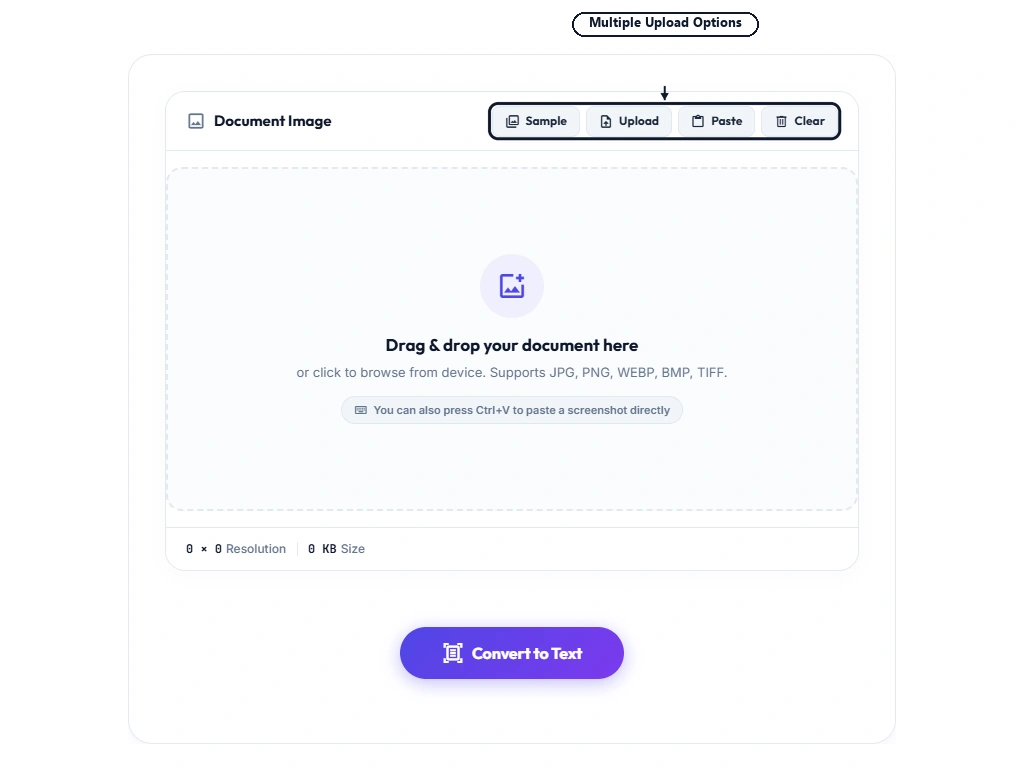
1. Multiple upload options
Upload an image using drag-and-drop, the Upload button, or the Paste option. You can also press Ctrl+V to insert a screenshot directly from your clipboard.
2. Image rotation controls
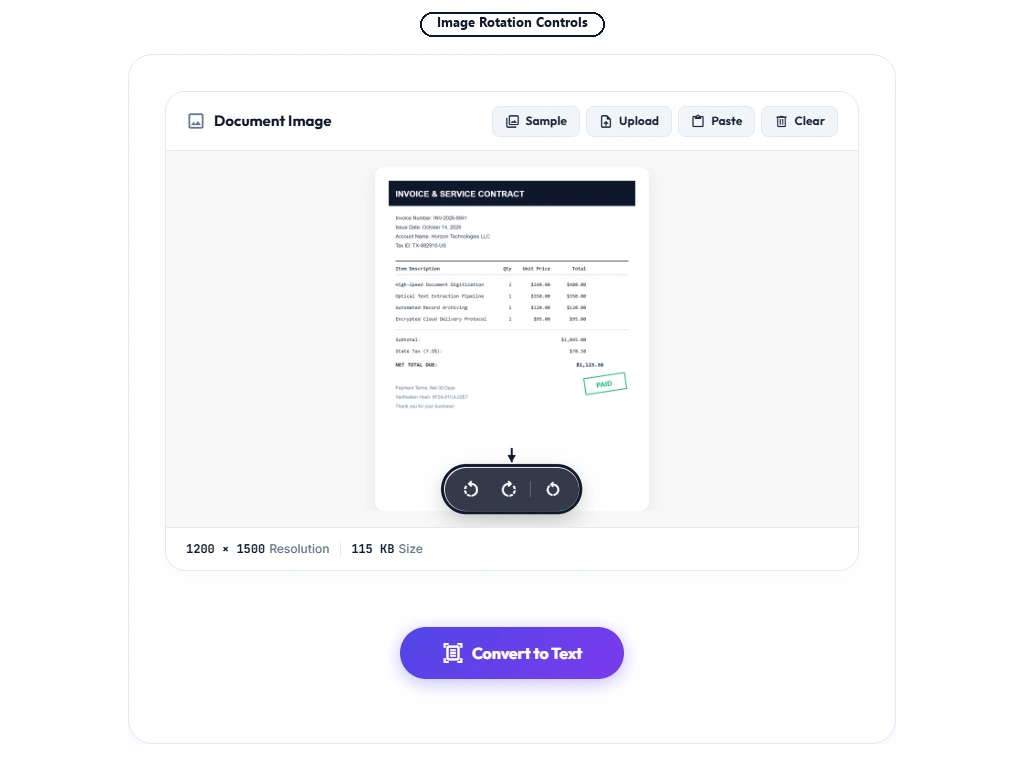
Image preview includes rotation controls to adjust the image's orientation. This is particularly useful when a photographed document appears sideways or upside down.
3. Text extraction with copying and download options
You can use the available controls to:
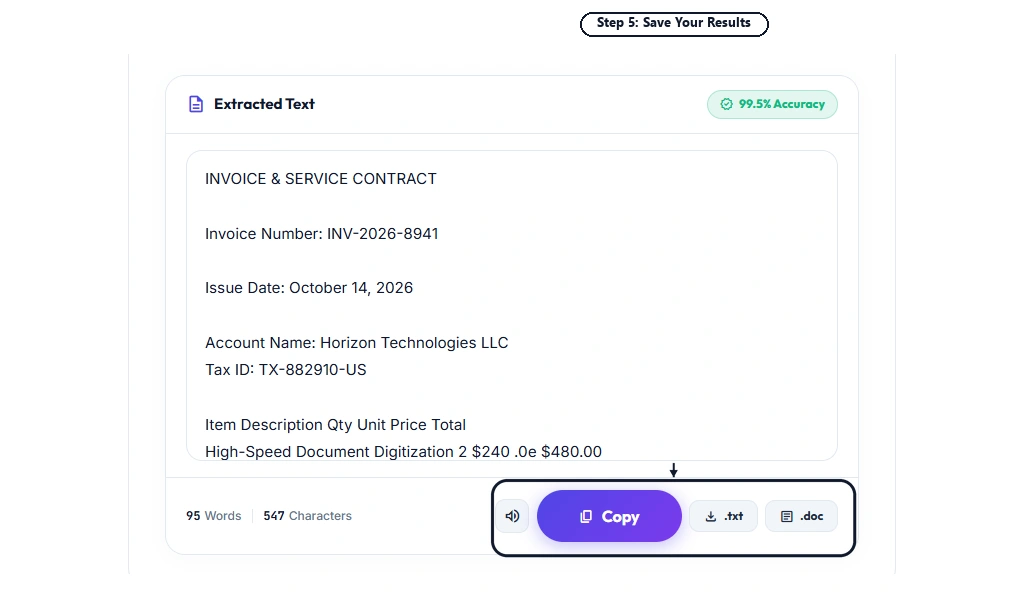
- Copy the recognized text to your clipboard.
- Listen to the extracted content using the audio control.
- Download .txt for a plain-text file.
- Download .doc for a document file.
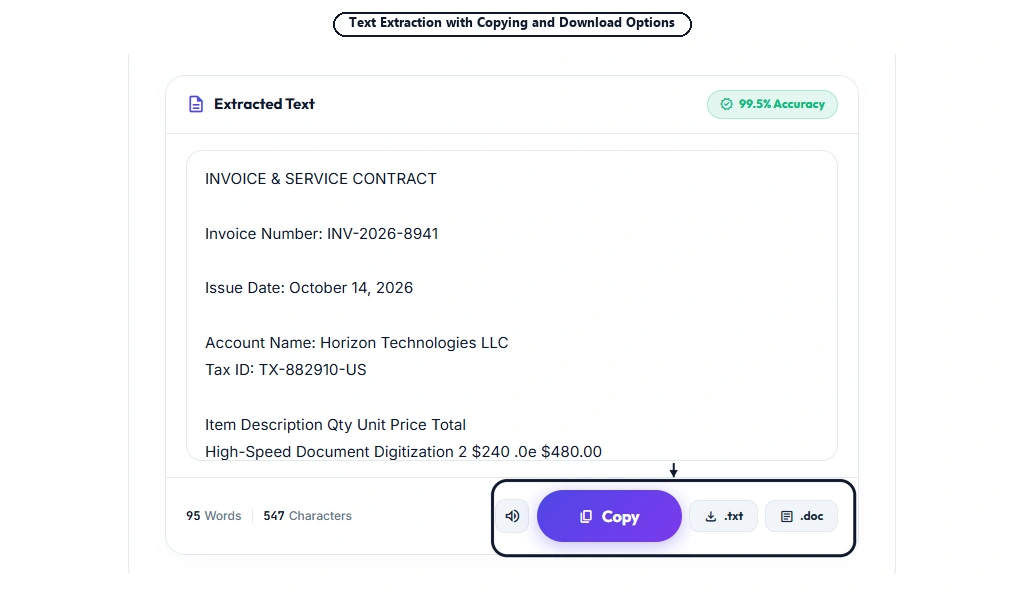
These options make the results useful for different writing and documentation tasks.
How to use optical character recognition online
Follow these steps to extract text from an image:
- Add your image: Drag and drop a document, click Upload, or paste an image using Ctrl+V.
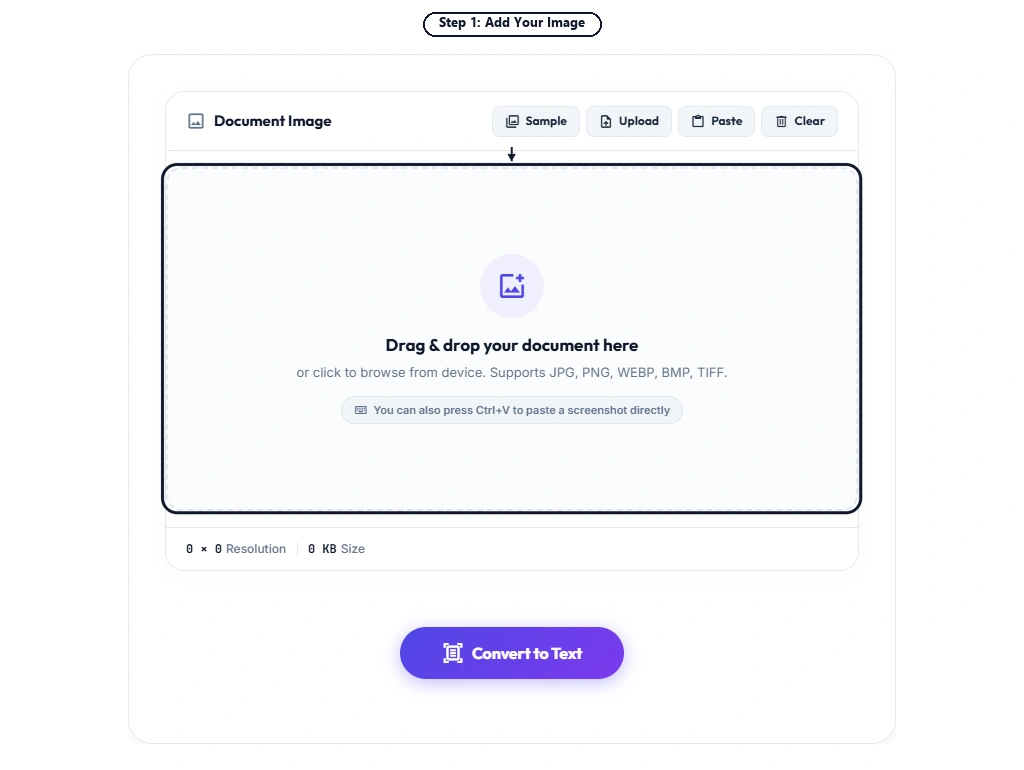
- Check the preview: Review the image and use the rotation controls if its orientation needs adjustment.
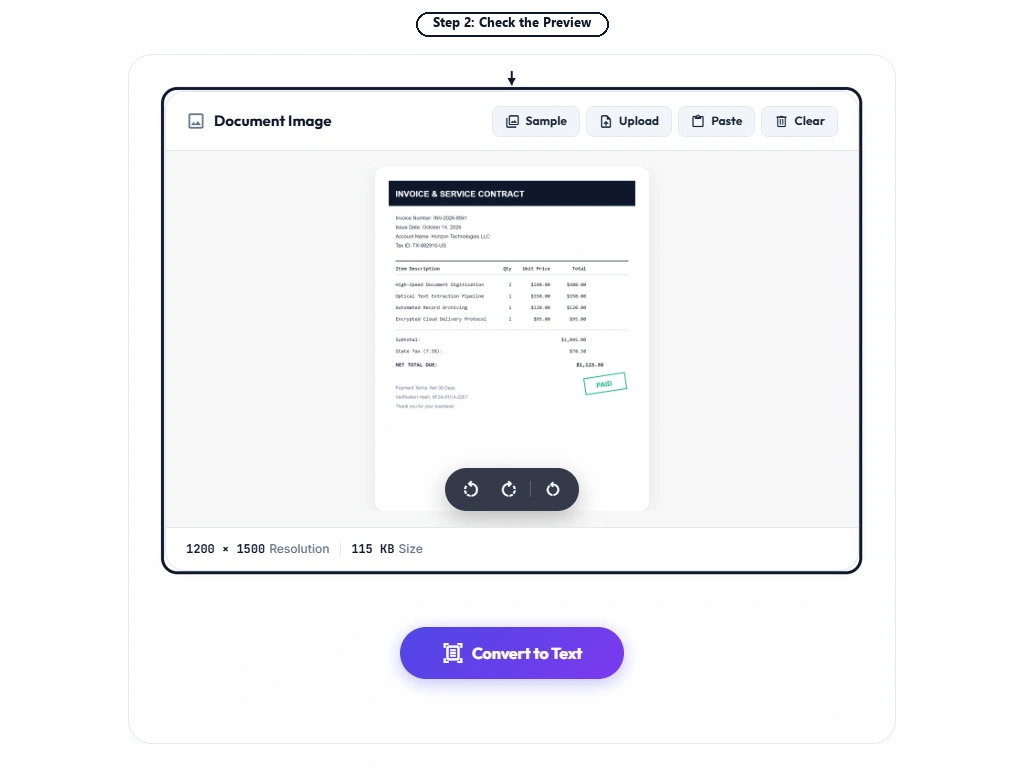
- Start recognition: Click Extract to process the image.
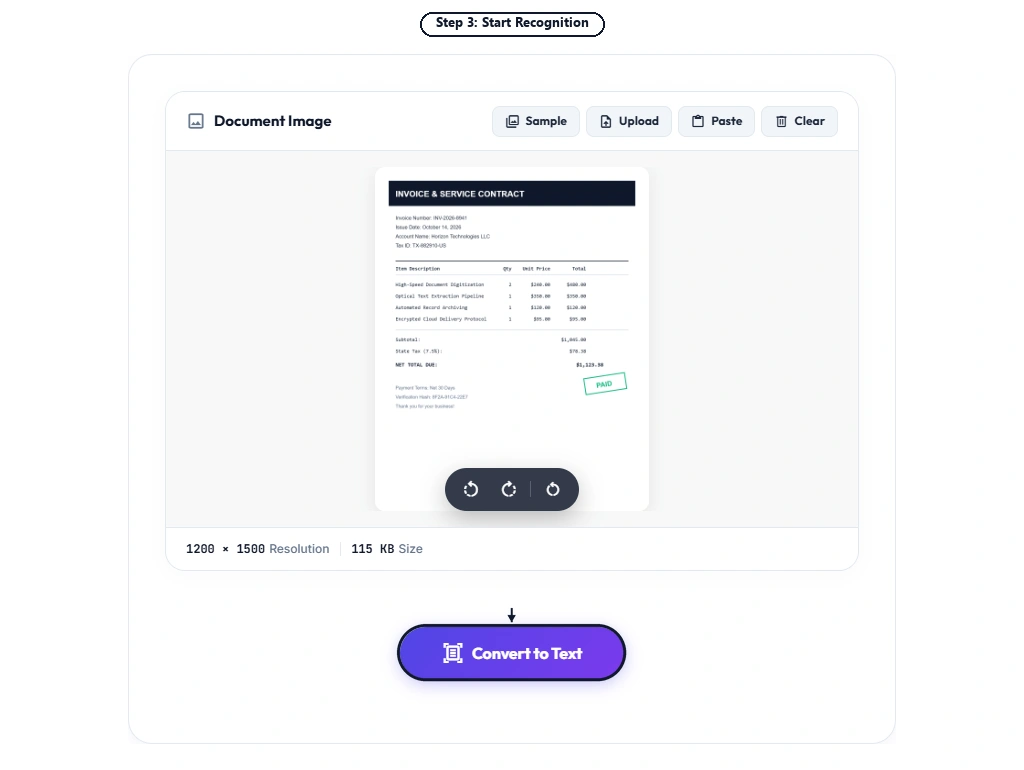
- Review the text: Read the recognized content in the Extracted Text panel and compare it with the source.
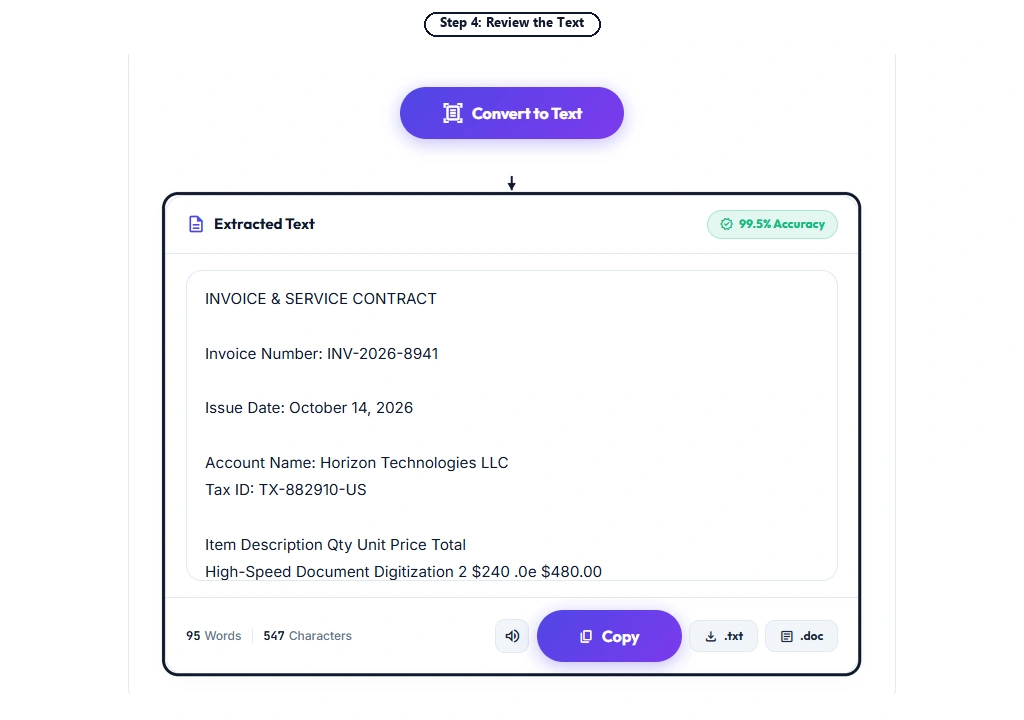
- Save your results: Choose Copy, .txt, or .doc, depending on how you want to use the text.
Use Clear when you want to start with another image.
What types of documents can OCR recognize?
An OCR tool can be useful for many documents containing printed text.
| Document type | Common information to extract |
|---|---|
| Printed study materials | Headings, paragraphs, and quotations |
| Business invoices | Invoice numbers, dates, and amounts |
| Receipts | Merchant details and transaction information |
| Screenshots | Error messages, instructions, and reference text |
| Scanned contracts | Clauses, names, and document references |
Recognition quality depends on the source image. Clear printed characters generally produce more reliable results than blurry photographs, heavily stylized fonts, or difficult handwriting.
Practical everyday use cases
Academic study and research
Students working with physical textbooks, printed lecture handouts, and library materials can use image OCR to extract quotations and study notes. Instead of manually transcribing lengthy passages, they can copy the recognized text into their research documents and verify it against the original source.
Office accounting and receipts
Bookkeepers and administrative teams can use OCR from image to text to capture invoice numbers, supplier names, dates, and itemized information. The extracted content can then be copied into spreadsheets or accounting records, reducing the amount of repetitive typing required.
Legal document digitization
Legal professionals often work with older contracts and scanned correspondence. Using OCR text recognition online, they can extract readable content from document images and organize it in searchable text files. This can make locating specific names, clauses, and references easier during document reviews.
Sensitive information and important legal wording should always be checked against the original document.
How to improve OCR accuracy
For better results with free optical character recognition online, pay attention to image quality before processing.
Choose images with sharp text, adequate lighting, and good contrast between the writing and background. Avoid photographs with shadows, reflections, or cropped words.
If a document appears sideways, rotate it before extracting the text. After processing, verify important numbers, names, punctuation, and similar-looking characters.
The accuracy indicator shown by the tool is a useful reference, but it should not replace manual verification when precision matters.
OCR versus other image and document tools
Different tools serve different purposes.
Our Image to Text Converter provides additional text extraction and output-format options for image-based content. If your goal is to translate writing captured in an image, explore the Image Translator.
For documents that you want to edit in Microsoft Word, the JPG to Word Converter offers DOCX output with font and layout customization.
Extract text without retyping
Our free OCR tool provides a convenient way to turn document images into reusable digital text.
Upload or paste your image, review the recognized content, and save the result in your preferred format. With support for common image files and straightforward extraction controls, Muse AI SEO Tools makes everyday document transcription easier.