JPG to Word Converter – Turn Images into Editable Word Documents Online
Have a scanned document, photographed report, or JPG image containing text you need to edit? Recreating the entire document manually can take considerable time, especially when it includes lengthy paragraphs, headings, or important details.
The JPG to Word Converter from Muse AI SEO Tools helps you transform image-based documents into editable Microsoft Word files. Upload your image, review the extracted content, customize its font and layout, and download a DOCX document.
Whether you're preparing office records, organizing academic materials, or updating scanned paperwork, this free tool makes document editing more convenient.
What is a JPG to Word converter?
A JPG to Word converter transforms written content captured in an image into an editable Word document.
For example, you might have a photograph of a printed business letter that needs updating. Instead of typing it again, you can convert a JPG to Word and work with the recognized text in a DOCX file.
Our converter supports JPG, JPEG, PNG, WEBP, and BMP images up to 20 MB. It also includes font selection, document layout presets, and a side-by-side preview to help you prepare a readable Word document.
Key features of our JPG to Word converter
1. Customizable Word fonts
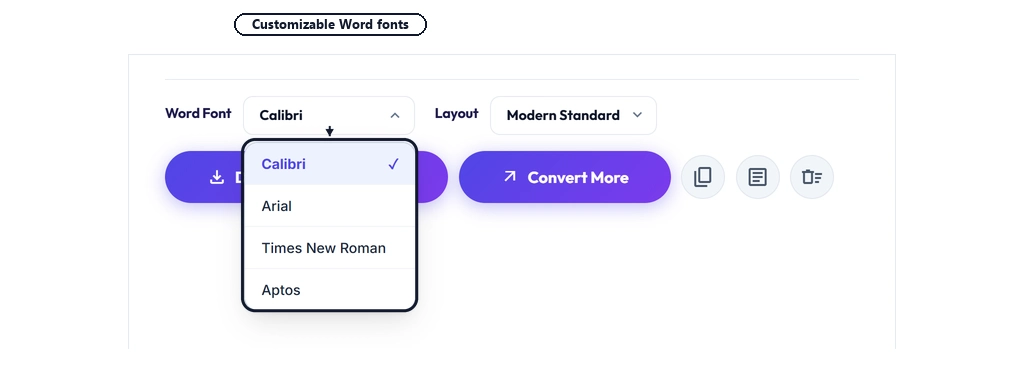
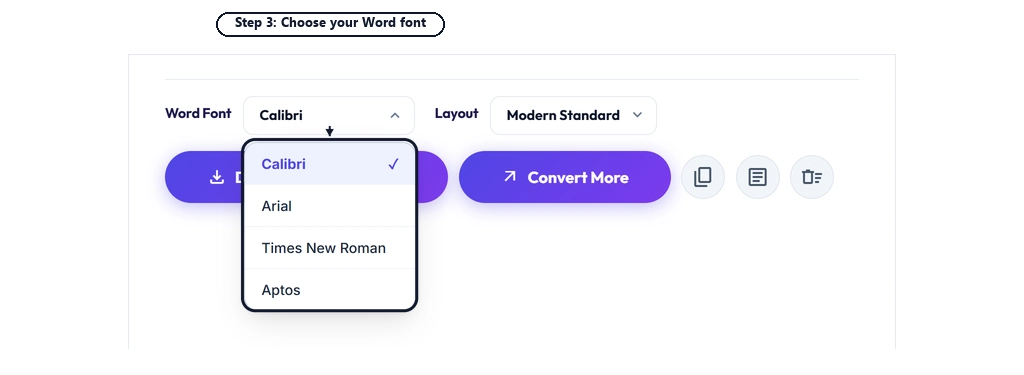
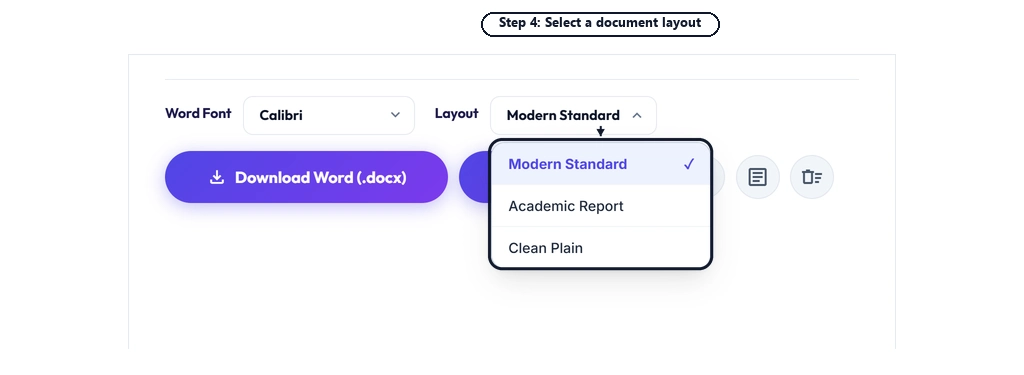
Choose how your converted Word document should appear using two dropdown menus.
Word Font offers four options:
- Calibri: A familiar font for everyday documents.
- Arial: A clean choice for business correspondence.
- Times New Roman: Suitable for traditional academic and formal writing.
- Aptos: A modern font for professional documents.
2. Customizable document layouts
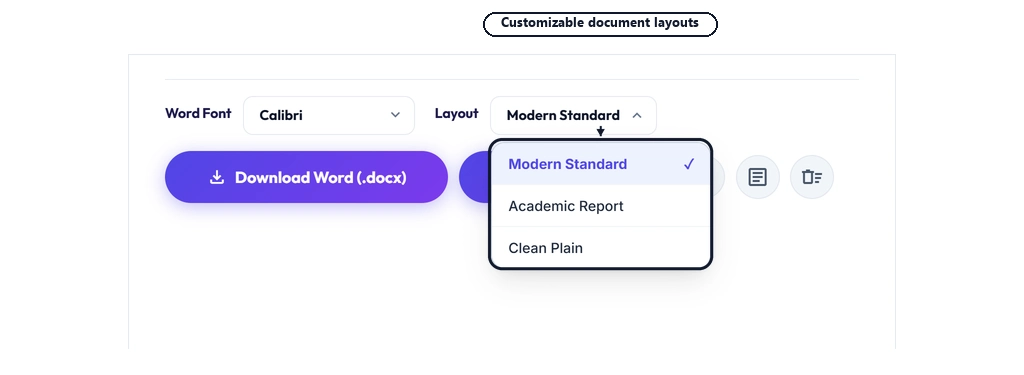
Layout provides three document styles:
- Modern Standard: A balanced layout for general documents.
- Academic Report: A style suited to research notes and formal reports.
- Clean Plain: A simplified presentation for straightforward editing.
How to convert JPG to Word online
Follow these steps to change JPG to Word using our converter:
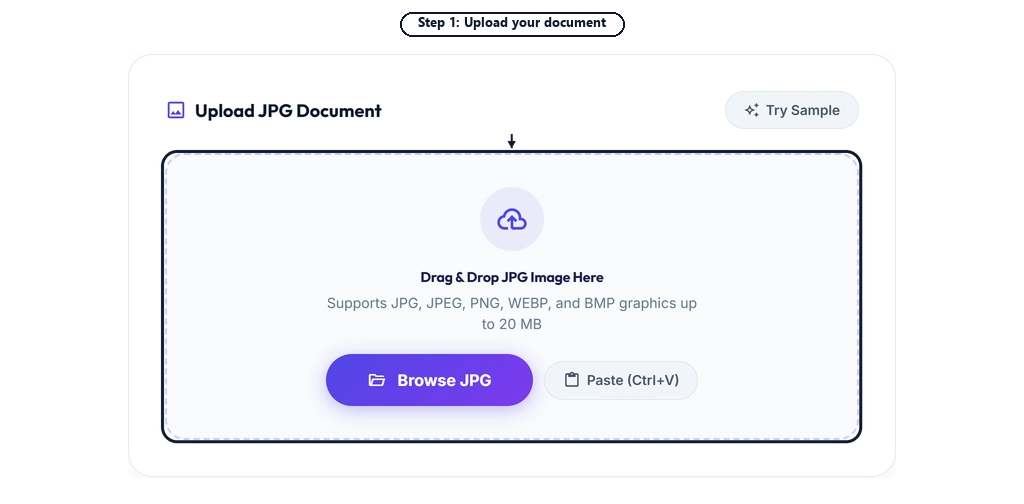
- Upload your document: Drag and drop a JPG image, select Browse JPG, or paste an image from your clipboard.
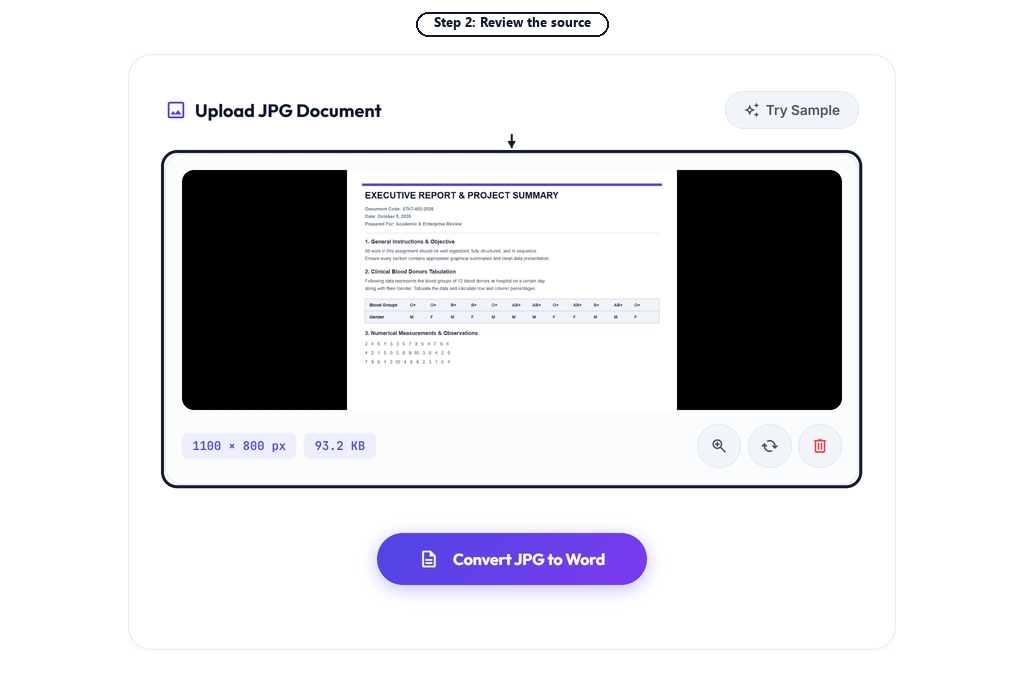
- Review the source: Check the uploaded image in the preview area.
- Choose your Word font: Select Calibri, Arial, Times New Roman, or Aptos.
- Select a document layout: Choose Modern Standard, Academic Report, or Clean Plain.
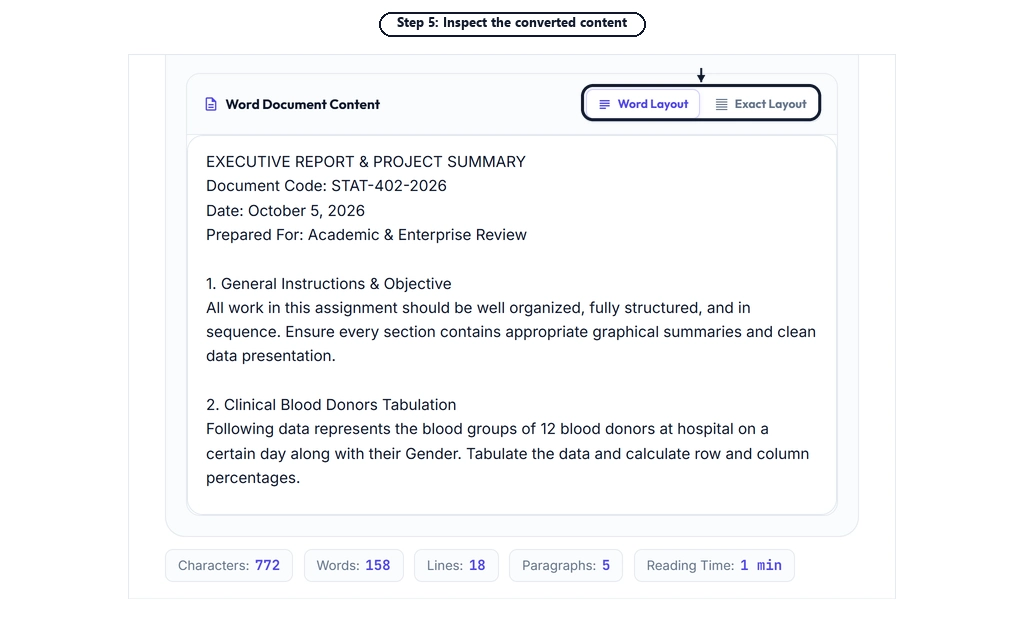
- Inspect the converted content: Compare the source document with the extracted text using Word Layout or Exact Layout.
- Download your document: Click Download Word (.docx) to save the editable file.
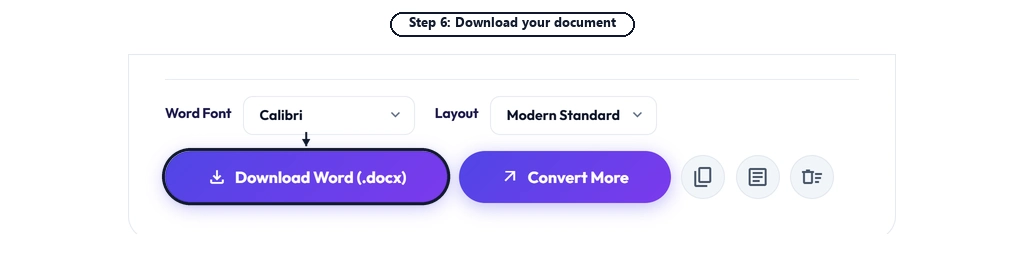
Select Convert More to process another image. You can open the downloaded DOCX file in compatible word-processing software to make further changes.
Why convert JPG to Word format?
An image captures the appearance of a document, but its text cannot usually be edited directly.
When you convert JPG to Word format, you can update paragraphs, correct spelling, reorganize information, and reuse written content without recreating the entire page.
| JPG image | Word document |
|---|---|
| Text is part of the image | Recognized text can be edited |
| Changes require image editing | Words and paragraphs can be revised |
| Difficult to reuse individual passages | Content can be copied and reorganized |
| Fixed visual presentation | Fonts and document formatting can be adjusted |
The conversion may not reproduce every original design element perfectly, particularly in documents containing complex tables, unusual fonts, or decorative layouts.
Popular practical use cases
- Office documentation: Convert scanned memos, invoices, contracts, and business letters into editable records for updating and filing.
- Academic research: Extract passages, quotations, and references from photographed textbook pages, lecture slides, and printed research materials.
- Receipts and invoices: Turn photographed billing statements into editable documents, making it easier to copy transaction details into financial records.
- Preserving notes: Convert photographed handwritten notes, recipe cards, and study guides into digital documents for future reference. Handwriting accuracy may vary depending on legibility.
Tips for better document conversion
If you want to convert JPG to Word free of unnecessary formatting problems, start with a clear image.
Use photographs with readable text, adequate lighting, and minimal blur. Straighten tilted pages before uploading, and avoid cropping important words near the edges.
After conversion, review names, numbers, punctuation, and table entries carefully. Even a clear image may contain characters that are interpreted incorrectly.
Explore related document tools
If you only need the written content without a formatted Word document, try our Image to Text Converter. For more specialized document recognition, explore Optical Character Recognition. You can also use Text to Image when you want to create visual content from written text.
Make scanned documents editable
Whether you need to update a photographed letter or organize printed research materials, our JPG to Word converter provides a convenient way to transform images into editable DOCX documents.
Upload your image, customize the font and layout, review the extracted text, and download your Word file with Muse AI SEO Tools.